The Keyword Strategy Builder is a tool that organizes your keyword research into structured content plans. The tool analyzes up to 10,000 keywords and groups them into topics, pillar pages, and subpages. This structure tactic helps you plan which pages to create and which keywords to target on each page.
Keyword Strategy Builder is available with paid subscriptions to the SEO Toolkit. The tool works by taking seed keywords and building a complete content map around them.
Using Keyword Strategy Builder
Keyword Strategy Builder works by transforming keyword lists into organized content plans. The tool follows a three-step process: you add keywords, the tool analyzes and structures them, and you use the results to create content.
- Add keywords to create a list: Add up to 5 seed keywords to create a structured list. You can also add keywords manually to an existing list.
- The tool structures your keywords: For structured lists created from seed keywords, Keyword Strategy Builder groups related keywords into topics and clusters. The tool identifies pillar pages for broad topics and subpages for specific subtopics. The tool prioritizes pages based on relevance to your seed keywords, search volume, keyword difficulty, domain diversity, and SERP features.
- Use your structured list to plan and create content: You can apply preset filters to find the best opportunities for your strategy. You can generate an article or SEO brief from your keywords. You can also send keywords to Position Tracking to monitor rankings.
How to create a Keyword List
To create a keyword list, enter up to 5 seed keywords on the Keyword Strategy Builder homepage and click Create. Keyword Strategy Builder automatically generates Topics, Pillar Pages, and Subpages. This works best for new content strategies.

Note: To build a list from other Semrush tools or from your own keywords, use Saved Keywords.
Understanding your keyword lists
Keyword Strategy Builder creates structured lists from up to 5 seed keywords. The tool automatically generates Topics, Pillar Pages, and Subpages for your keywords.
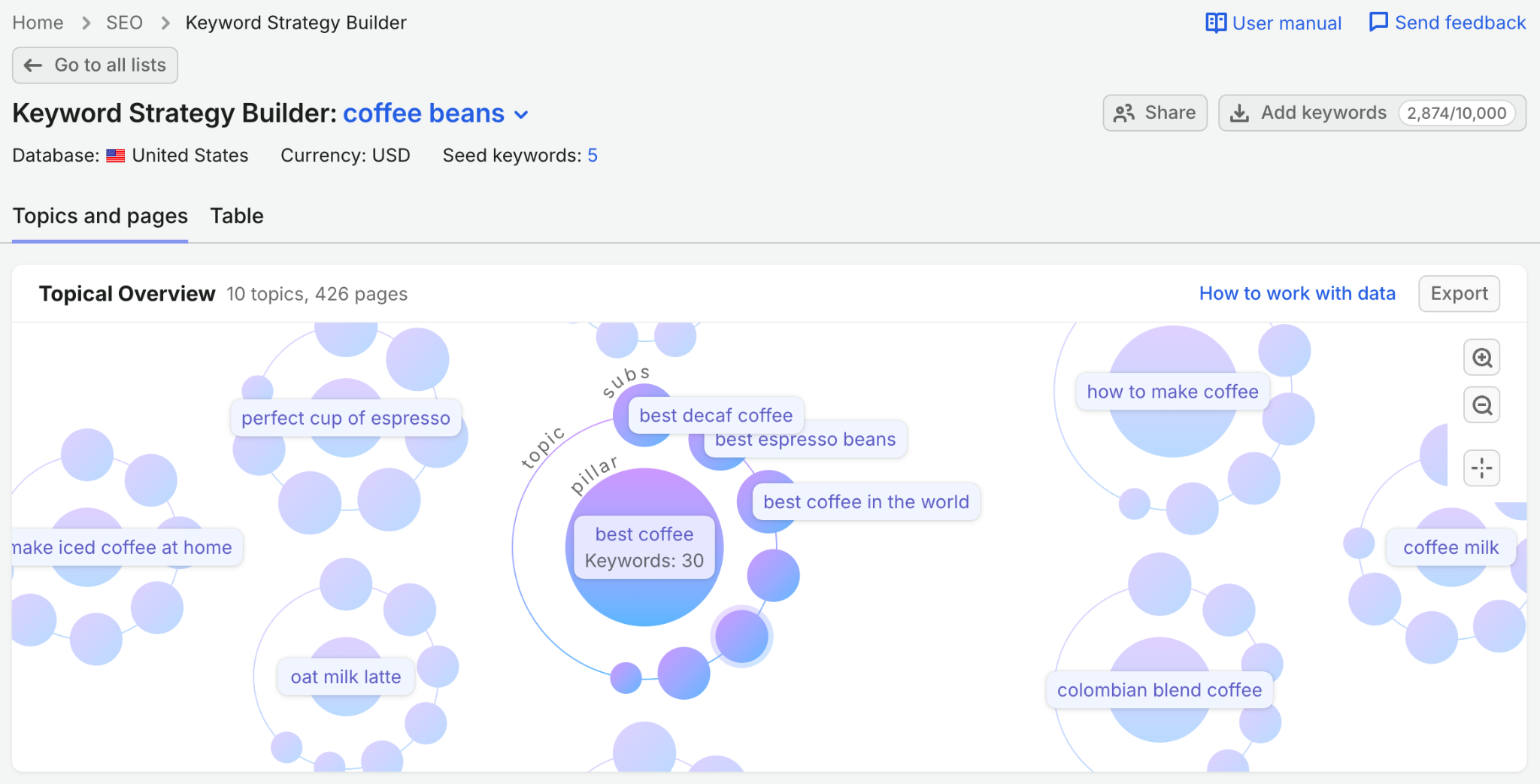
Structured lists include:
- Auto-generated Topics and Pages
- Topical overview widget
- Pillar and subpage suggestions
Structured lists work best when you plan new content strategies from scratch.
Navigating structured lists
Structured lists organize your keywords into Topics and Pages. The tool groups related keywords into topics and identifies pillar pages for broad topics and subpages for specific subtopics.
Understanding Topics and Pages
Pillar pages: Target broad topics and serve as hub content. Pillar pages rank for high-volume head terms and provide comprehensive overviews of a topic. Each pillar page links to multiple subpages.
Subpages: Target specific subtopics and support pillar pages. Subpages rank for more specific long-tail keywords. Subpages link back to their parent pillar page and create a topic cluster structure.

Pillar pages target broad topics and serve as hub content. Subpages target specific subtopics and support pillar pages.
The tool prioritizes pages based on 5 factors:
- Relevance to your seed keywords
- Search volume
- Keyword difficulty
- Domain diversity
- SERP features
Topical Overview
The Topical Overview widget displays your Topics and Pages in a visual format. The widget shows how keywords are grouped and organized across your content plan.

Topics and pages
The Topics and pages tab displays your structured keywords in a hierarchical view. Each row shows a pillar page or subpage with associated metrics and keywords.

Table
The Table tab displays all keywords in a flat list view. Use the Table tab when you need to see individual keyword metrics across all Topics and pages.

Pages Details
Click a page in the Topics and pages tab to expand it. The expanded page shows which keywords belong to that page, with their keyword difficulty and search volume, plus the page’s SERP features and potential SERP competitors.

You can take action on a page’s keywords:
- Generate an article or SEO brief with Generate content on the page row
- Send keywords to Position Tracking with Actions
- Export keywords to use in other tools with Export
- View SERP features and potential SERP competitors for the page
Expanding a page helps you understand which keywords to target together on a single page.
Using preset filters
Keyword Strategy Builder offers 4 preset filters to help you prioritize keywords.

Best for Strategy: Filters keywords that balance search volume, difficulty, and relevance.
This preset shows pages with the best combination of KD and Volume, the most relevant pages, and pages with the intent for the top and bottom of the funnel.
For each topic, the preset automatically:
- Identifies up to 3 pages with the strongest relevance
- Selects up to 3 pages with the most favorable combination of low keyword difficulty and high search volume
- Highlights up to 3 highly relevant pages that specifically target either informational searches or commercial searches.
Use this filter when you want well-rounded opportunities that align with your seed keywords.
Quick Conversions: Filters keywords with transactional or commercial intent. Use this filter when you prioritize revenue-driving content over informational content.
More Potential Traffic: Filters keywords with the highest search volumes. Use this filter when your goal is maximum visibility and you have resources to compete for competitive terms.
You can refresh keyword metrics at any time to see the latest search volume, keyword difficulty, and other data.
All Pages: Shows every page in the list, with no preset filter applied. Use this view when you want to review your full content plan.
How to use your lists
Keyword Strategy Builder allows you to take action on your organized keywords. You can send keywords to other Semrush tools, export your research, or create content directly from your lists.
Send keywords to Position Tracking
You can send keywords from your list to Position Tracking to monitor rankings.
To send keywords to Position Tracking:
- Select the keywords or pages you want to track
- Click Actions and select Send to Position Tracking
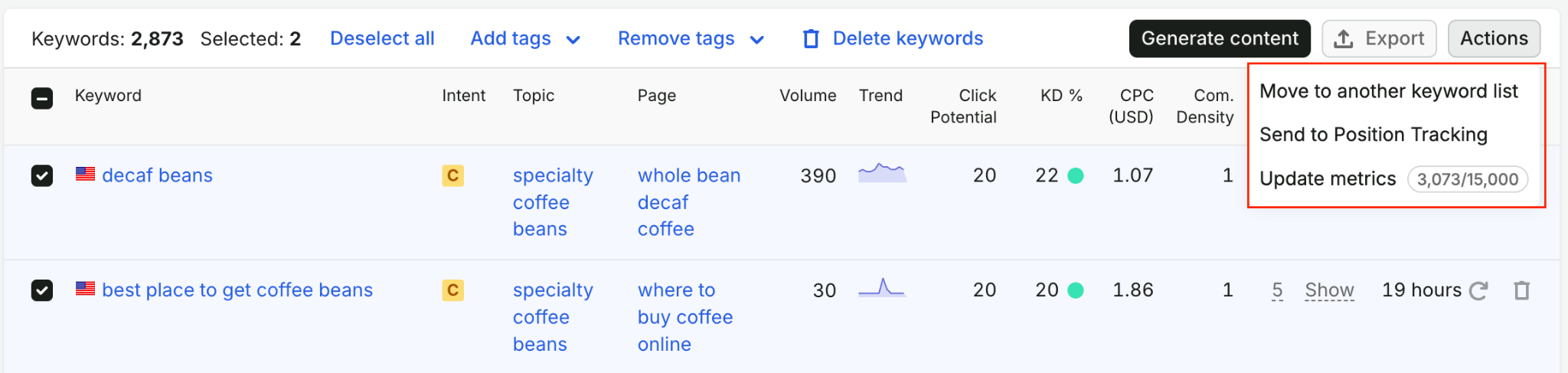
- Choose your tracking project or create a new one
- The selected keywords will begin tracking daily rankings
Export your keyword list
You can export keywords to use in external tools or share with your team. Keyword Strategy Builder exports in three formats: XLSX, CSV, or CSV semicolon.
To export your list:
- Click Export
- Select your file format (XLSX, CSV, or CSV semicolon)

- Choose to export all pages and keywords or only selected pages and keywords
- The file will download to your device
Exported files include all keyword metrics such as search volume, keyword difficulty, intent, and competitive density.
Create content or briefs
You can generate articles or SEO briefs from your keywords.

To create content with AI:
- Select the keywords you want to target
- Click Generate content
- Select Article
- The article opens in Content Optimizer
Follow the steps in the Content Toolkit to have the AI write the content for you.
To create a content brief:
- Select the keywords you want to target
- Click Generate content
- Select SEO brief
- The brief opens in SEO Brief Generator
Content briefs help you plan comprehensive content before writing. AI-generated content provides a complete first draft based on your target keywords.
How to share your lists
You share lists in Keyword Strategy Builder by clicking Share and entering recipient email addresses. Sharing allows you to grant Viewer or Editor access to your keyword lists with other users.
Sharing from the Main Page
You can share lists from the main Keyword Strategy Builder page. Share is located above your keyword lists.

To share lists from the main page:
- Click Share
- Select 1 or more lists you want to share
- Enter recipient email addresses (separate multiple emails with commas)
- Choose access level: Viewer or Editor
- Click Share
Viewer access allows recipients to view the list but not make changes. Editor access allows recipients to view and modify the list.
Sharing individual lists
You can share a single list directly from the list row. Click Share list to the right of any list name. You can also share domain-based audits with other users the same way, via the Share icon in the Actions column.

The Share settings panel opens where you can:
- Share the list with new users
- View all users who have access
- Change user permissions
- Stop sharing with specific users
Viewing shared lists
Shared lists appear in the Shared with Me tab. Select Shared with Me in Keyword Strategy Builder to view all lists others have shared with you.
The tab displays:
- Each shared list name
- The list owner's email address
- Your access level (Viewer or Editor)
You can leave a shared list at any time. Only the list owner can delete a shared list.
Note: When other users update metrics on lists you shared with them, the refresh uses your Keyword refresh limits. Corporate account owners have Editor access to their subusers' lists by default.
Limits
Keyword Strategy Builder limits vary by subscription level and include keyword capacity, clustering actions, metric refreshes, and sharing permissions. Keyword Strategy Builder is part of the SEO Toolkit. All limits reset monthly except the total keyword capacity.
Keyword capacity
All subscriptions can store up to 200,000 total keywords across all lists in Keyword Strategy Builder. Deleting lists does not restore this capacity.
Structuring actions
Structuring a list counts as one action against your monthly limit, regardless of how many topics the tool creates.
- Without SEO Toolkit: 0 actions per month
- Pro SEO: 10 actions per month
- Guru SEO: 30 actions per month
- Business SEO: 50 actions per month
Deleting lists does not restore these limits. Limits renew each month.
Keyword metric refreshes
You can manually refresh keyword metrics to view updated search volume, keyword difficulty, and SERP data. Each keyword refresh counts against your monthly limit.
- Without SEO Toolkit: 0 refreshes per month
- Pro SEO: 250 refreshes per month
- Guru SEO: 1,000 refreshes per month
- Business SEO: 5,000 refreshes per month
List sharing permissions
Sharing permissions depend on your subscription level and the recipient's subscription level:
- Paid users can share lists with Editor access to other paid users
- Paid users can share lists with Viewer access to all users (including Free users)
- Free users cannot share Keyword Strategy Builder lists